Verify in depth
Every control and text of SMS > Verify, a verification's details and the services.
Every control and text this screen shows, in screen order. The list is read from the demo by a crawl, and CI fails when the screen changes without its entry here.
SMS > Verify shows every one-time code your app requested through the Twilio Verify API, and lets you force any outcome.
The screen as a whole: Verify.
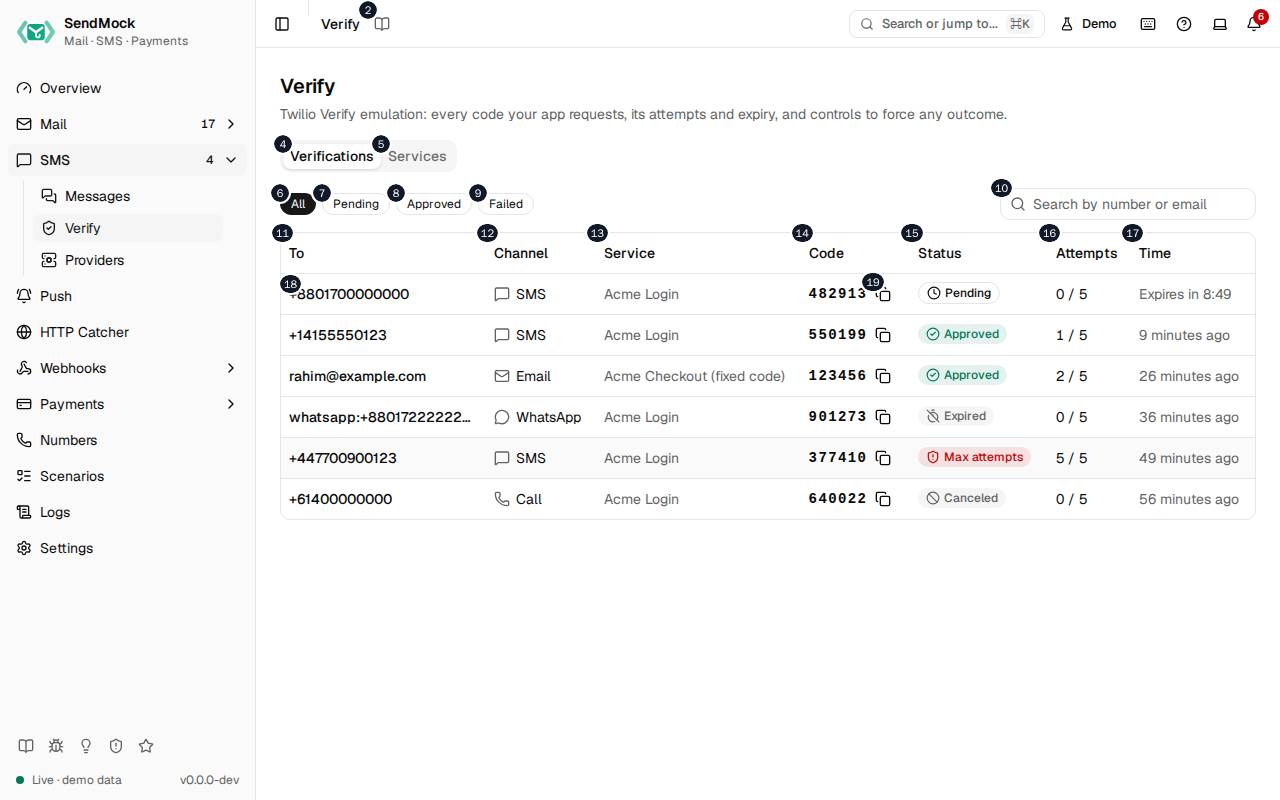
The numbers match the entries below. The picture shows the first screenful; controls further down, and texts, have no marker.
On the screen
1. Verify
Heading.
- What it does: Names the screen, in the header and above the tabs.
2. Read the Verify guide
Link.
- What it does: Opens this screen's page in the user guide, in a new tab.
- Links to: Verify.
3. Twilio Verify emulation: every code your app requests, its attempts and expiry, and controls to force any outcome.
Text.
- What it does: Explains the screen.
4. Verifications
Tab.
- What it does: Every verification your app started, newest first.
- Same action elsewhere: REST
GET /api/v1/verify, CLIsendmock verify list, MCPsendmock_verify_list
5. Services
Tab.
- What it does: The Verify services apps start verifications against.
- Same action elsewhere: REST
GET /api/v1/verify/services, CLIsendmock verify services list, MCPsendmock_verify_service_list
6. All
Button.
- What it does: Shows every verification.
7. Pending
Button.
- What it does: Shows only verifications still waiting for a correct code.
8. Approved
Button.
- What it does: Shows only approved verifications.
9. Failed
Button.
- What it does: Shows only verifications that expired, were cancelled or ran out of attempts.
10. Search verifications
Field.
- What it does: Filters by phone number, email address or service.
11. To
Column.
- What it does: Who the code went to.
12. Channel
Column.
- What it does: SMS, WhatsApp, email or call.
13. Service
Column.
- What it does: The Verify service it belongs to.
14. Code
Column.
- What it does: The code that was sent.
15. Status
Column.
- What it does: Pending, approved, canceled, expired or max attempts reached.
16. Attempts
Column.
- What it does: How many checks were made, against the service's limit.
17. Time
Column.
- What it does: When it was started.
18. …
Link, in each row.
- What it does: Opens the verification's details.
- Same action elsewhere: REST
GET /api/v1/verify/{verificationSid}, CLIsendmock verify show, MCPsendmock_verify_get
19. Copy code
Button, in each row.
- What it does: Copies the code, to type it into your app.
A verification is open
20. Verification
Heading.
- What it does: The details drawer of one verification.
21. Code, attempts and everything that happened to it.
Text.
- What it does: Explains the drawer: the code, each check with its result, and the timeline.
22. Copy code
Button.
- What it does: Copies the code.
23. Open the message
Link.
- What it does: Opens the SMS or email the code was delivered in.
- Links to: SMS.
24. Force a state
Heading.
- What it does: Moves the verification to a final state by hand, to test what your app does then.
25. Approve
Button.
- What it does: Approves the verification, as a correct code would.
- What it changes: Fires
verify.checkedwith the statusapproved. - Same action elsewhere: REST
POST /api/v1/verify/{verificationSid}/force, CLIsendmock verify force, MCPsendmock_verify_force
26. Cancel
Button.
- What it does: In the drawer, cancels the verification (fires
verify.checkedwith the statuscanceled); in a dialog, closes it without saving. - Same action elsewhere: REST
POST /api/v1/verify/{verificationSid}/force, CLIsendmock verify force, MCPsendmock_verify_force
27. Expire
Button.
- What it does: Expires the verification, as when its time runs out.
- What it changes: Fires
verify.expired. - Same action elsewhere: REST
POST /api/v1/verify/{verificationSid}/force, CLIsendmock verify force, MCPsendmock_verify_force
28. Max attempts
Button.
- What it does: Ends the verification as if too many wrong codes were tried; checks then get Twilio's 60202 error.
- What it changes: Fires
verify.checkedwith the statusmax_attempts_reached. - Same action elsewhere: REST
POST /api/v1/verify/{verificationSid}/force, CLIsendmock verify force, MCPsendmock_verify_force
29. Your app sees the new state on its next check or fetch.
Text.
- What it does: Explains when the forced state takes effect.
30. Close
Button.
- What it does: Closes the drawer or dialog.
Services tab
31. Code length, an optional fixed code and how long codes stay valid.
Text.
- What it does: Explains what a service sets.
32. New service
Button.
- What it does: Opens the New Verify service dialog.
33. Name
Column.
- What it does: The service's friendly name.
34. SID
Column.
- What it does: Its
VA...SID, which apps put in the Verify API path.
35. Expires after
Column.
- What it does: How long a code stays valid.
36. Actions
Column.
- What it does: Edit and Delete for each service.
37. Copy SID of Acme …
Button, in each row.
- What it does: Copies the service's SID, for your app's Verify calls.
38. Edit Acme …
Button, in each row.
- What it does: Opens the service's settings: name, code length, expiry and fixed code.
- Same action elsewhere: REST
PATCH /api/v1/verify/services/{serviceSid}, CLIsendmock verify services update, MCPsendmock_verify_service_update
39. Delete Acme …
Button, in each row.
- What it does: Deletes the service after you confirm.
- Same action elsewhere: REST
DELETE /api/v1/verify/services/{serviceSid}, CLIsendmock verify services delete, MCPsendmock_verify_service_delete
New Verify service dialog
40. New Verify service
Heading.
- What it does: The New Verify service dialog.
41. Apps start verifications against a service by its SID.
Text.
- What it does: Explains the SID.
42. Name
Field.
- What it does: The service's friendly name.
43. Code length
Drop-down.
- What it does: How many digits the codes have, 4 to 10.
44. Expires after (minutes)
Number field.
- What it does: How long a code stays valid.
45. Fixed code (optional)
Field.
- What it does: A code every verification of this service uses, instead of a random one.
46. Leave empty for a random code. A fixed code makes tests deterministic.
Text.
- What it does: Explains the fixed code.
47. Cancel
Button.
- What it does: In the drawer, cancels the verification (fires
verify.checkedwith the statuscanceled); in a dialog, closes it without saving. - Same action elsewhere: REST
POST /api/v1/verify/{verificationSid}/force, CLIsendmock verify force, MCPsendmock_verify_force
48. Create service
Button.
- What it does: Creates the service with a new SID.
- Same action elsewhere: REST
POST /api/v1/verify/services, CLIsendmock verify services create, MCPsendmock_verify_service_create
49. Close
Button.
- What it does: Closes the drawer or dialog.
With no data yet
50. No verifications yet
Text.
- What it does: Shown when no verification was started yet.
51. Start one from your app with the Twilio Verify API. The code shows up here and in the SMS screen.
Text.
- What it does: Explains how verifications arrive.
52. This machine
Choice.
- What it does: Shows the addresses for an app on the same machine.
- What it changes: Shared with Settings > Connection and remembered in the browser.
- Same action elsewhere: REST
GET /api/v1/info, CLIsendmock status, MCPsendmock_status
53. Docker host
Choice.
- What it does: Shows the addresses for an app in a container reaching SendMock on the host.
54. Compose
Choice.
- What it does: Shows the addresses for an app in the same Docker Compose project.
55. Copy Twilio base URL
Button.
- What it does: Copies the base URL to give Twilio's SDK.
56. Copy Start a verification
Button.
- What it does: Copies the Verify API URL that starts a verification.
57. More snippets
Link.
- What it does: Opens Settings > Connection.
- Links to: Settings.
58. Start a sample verification
Button.
- What it does: Starts a verification against the first service and delivers its code by SMS.
- What it changes: Fires
verify.startedand stores the SMS with the code. - Same action elsewhere: REST
POST /api/v1/samples/{kind}, CLIsendmock sample, MCPsendmock_sample_send
59. Choose webhooks for Start a sample verification
Button.
- What it does: Opens Choose webhooks for this one action. Choose webhooks lists every enabled endpoint with a search box, the endpoints your rules would pick already checked, each checked one with Payload to see and edit its request, and says how many are chosen (or that no webhook will be sent). Its confirm button, named after the action, runs it once and sends the event to exactly the checked endpoints; Cancel runs nothing.
- What it changes: The chosen deliveries show
chosenas their Trigger in Webhooks > Deliveries, and an edited payloadedited. Your rules stay as they are; the dialog's rules link opens them in a new tab. - Links to: Webhook rules.
- Same action elsewhere: REST
POST /api/v1/samples/{kind}, CLIsendmock sample, MCPsendmock_sample_send - Same action elsewhere: REST
POST /api/v1/webhooks/rules/match, CLIsendmock webhook rule match, MCPsendmock_webhook_rule_match
When the data cannot load
60. Could not load verifications. Try again
Message.
- What it does: Shown when the verifications could not be loaded.
- Errors: Check SendMock is running, then press Try again.
61. Could not load verifications.
Text.
- What it does: The message inside the alert.
62. Try again
Button.
- What it does: Loads the verifications again.
- Same action elsewhere: REST
GET /api/v1/verify, CLIsendmock verify list, MCPsendmock_verify_list