Verify
Twilio Verify and Vonage Verify emulation with codes you can read, live expiry, and outcomes you can force.
Try it in the demo.
Your app starts and checks verifications through Twilio Verify's or Vonage Verify's real API. SMS > Verify shows every verification with its code, so you, a test or an agent can read it instead of waiting for a phone.
What it solves
- Login and sign-up by code without a phone, credits or a Twilio account.
- The error paths: an expired code, a canceled verification, too many wrong attempts. They are hard to produce on Twilio; here they are a button.
- Automated tests: a service with a fixed code (
123456) makes every run the same.
How it connects
| Gets from | Sends to |
|---|---|
your app over the Twilio Verify or Vonage Verify v2 API at http://127.0.0.1:8026 | the code as an SMS (shown in SMS) or an email (shown in Mail) |
| Verify services (this screen's Services tab, or the seed file) | verify.started, verify.checked and verify.expired events to Webhooks > Rules |
| the API request to Logs > API requests |
Use it
- Point your app's Twilio client at
http://127.0.0.1:8026, or press Start a sample verification on the empty screen. - Start a verification in your app (log in, sign up). A row appears with the code and a countdown ("Expires in 9:41").
- Copy the code and enter it in your app. The row turns Approved.
- Start another, open it and press Expire. Your app's next check fails the way Twilio fails.
Vonage Verify v2
Apps on Vonage's Verify v2 API work the same way. Point the Vonage client's API host at the provider port (in the Node SDK, new Verify2(credentials, { apiHost: "http://127.0.0.1:8026" })); the vonage_verify provider answers:
| Request | Answer |
|---|---|
POST /v2/verify with brand and workflow (sms, whatsapp, email or voice) | 202 with the request_id; the code goes out as an SMS or email |
POST /v2/verify/{request_id} with code | 200 completed, or 400 Invalid Code |
DELETE /v2/verify/{request_id} | 204, the verification canceled |
| a finished, canceled or unknown request | 404 Not Found |
Errors use Vonage's problem shape (title, type, detail, instance). Vonage has no Verify services, only a brand per request, so SendMock keeps one service per brand, made on first use and named after it, with the request's code_length (default 4). Change that service's fixed code or lifetime on the Services tab like any other. The request_id is the verification's SID. Silent authentication, next_workflow, templates and the legacy Verify v1 API are not emulated.
Everything on this screen
The screen has two tabs, kept in the URL.
Verifications
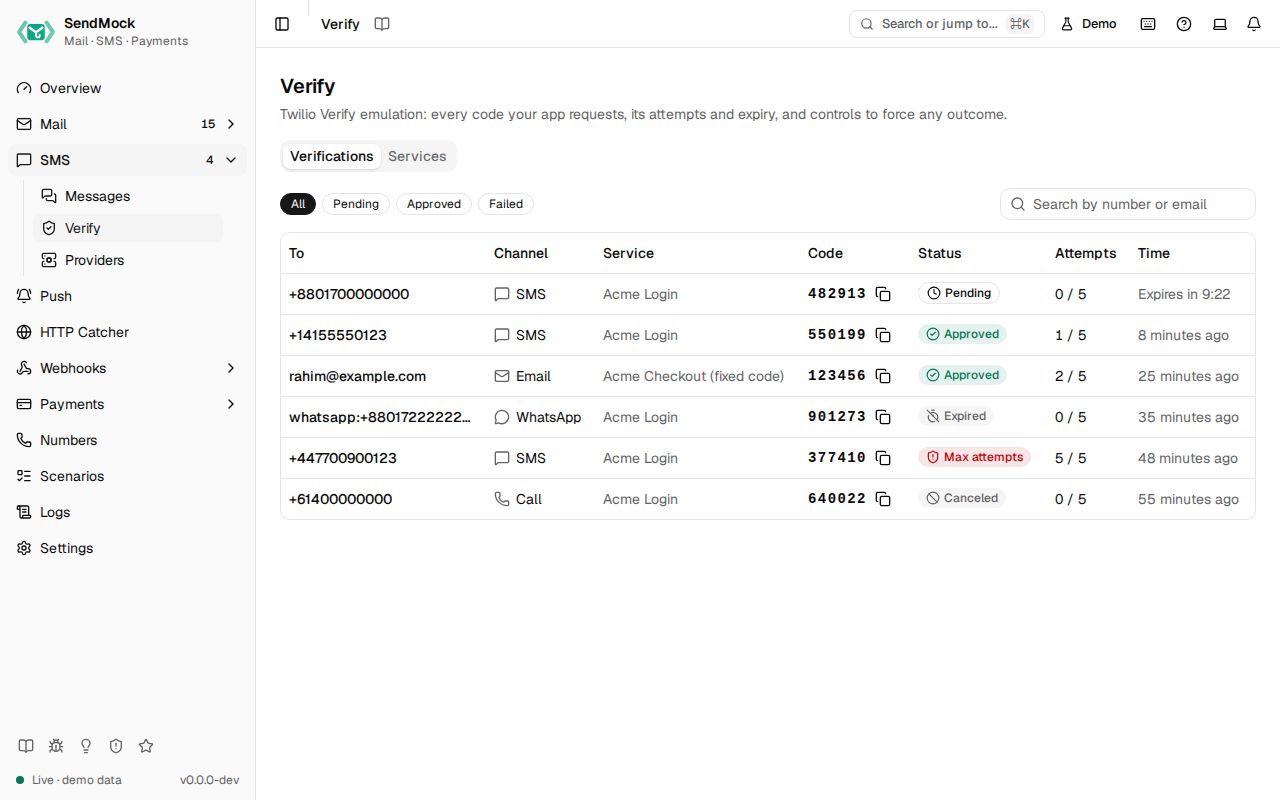
- A table: To, channel (SMS, WhatsApp, Email or Call), service, the code with a copy button, status, check attempts ("2 / 5") and a live countdown for pending ones.
- Status chips (All, Pending, Approved, Failed for canceled, expired and max attempts) and a search on To.
The verification drawer
Click a row (or open ?verification=<sid>; Esc closes): the code large with copy, status, To, channel, service, attempts, created and expiry times, Open the message (the SMS or email that carried the code), the timeline (started, code sent, failed checks, approved, canceled, expired, max attempts reached, forced), and, while pending, the force buttons: Approve, Cancel, Expire and Max attempts.
Services
A table of Verify services: name, SID (copy), code length, fixed code (or Random), lifetime, and Edit and Delete. New service asks for a name, a code length (4 to 10), an optional fixed code (digits, exactly the code length) and the lifetime in minutes (1 to 1,440).
Every control and text, one by one: Verify in depth.
Customize
- A fixed code per service makes automated tests deterministic.
- The code length and lifetime follow what your production service uses.
- Services go into the seed file, so your team and CI get the same ones (Advanced: seed file).