Push in depth
Every control and text of Push and a notification's drawer.
Every control and text this screen shows, in screen order. The list is read from the demo by a crawl, and CI fails when the screen changes without its entry here.
Push shows every notification your app sends through FCM, Expo or OneSignal, as a phone's lock screen would show it.
The screen as a whole: Push.
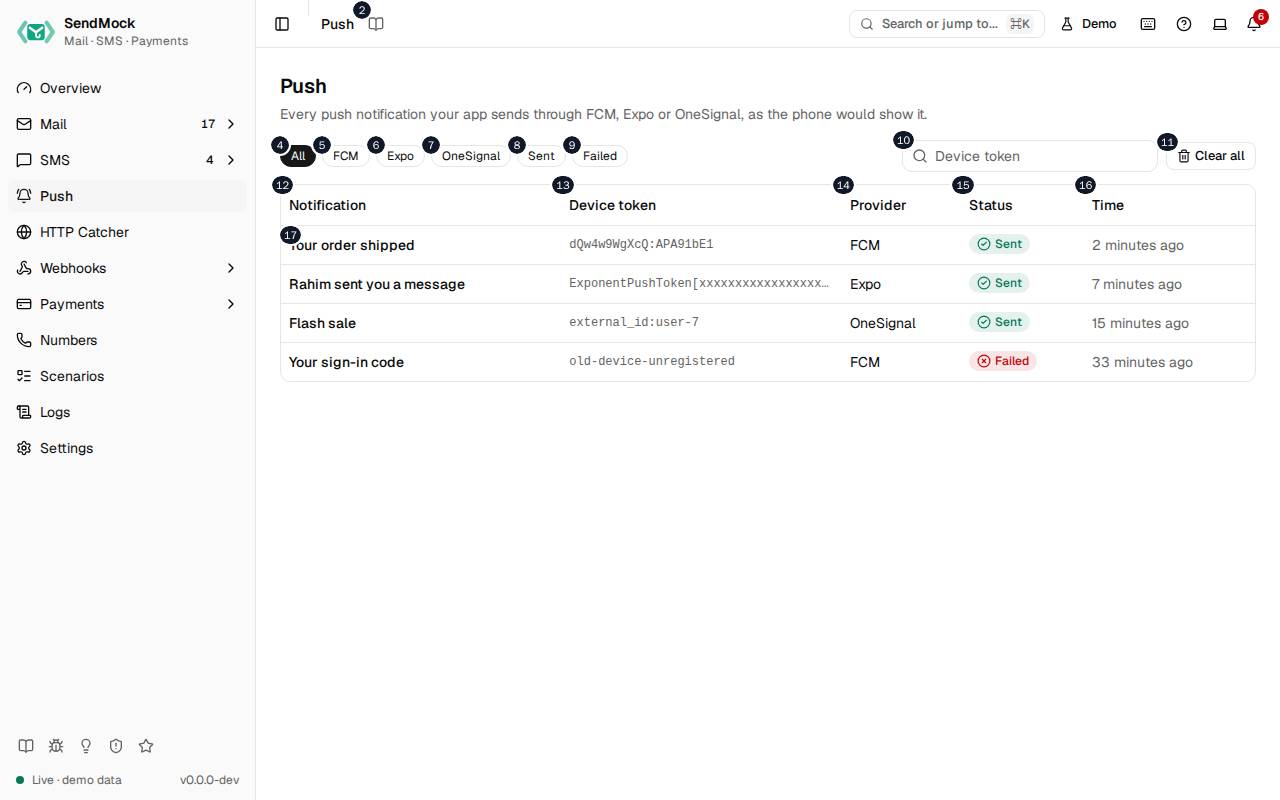
The numbers match the entries below. The picture shows the first screenful; controls further down, and texts, have no marker.
On the screen
1. Push
Heading.
- What it does: Names the screen.
2. Read the Push guide
Link.
- What it does: Opens this screen's page in the user guide, in a new tab.
- Links to: Push.
3. Every push notification your app sends through FCM, Expo or OneSignal, as the phone would show it.
Text.
- What it does: Explains the screen.
4. All
Button.
- What it does: Shows notifications from every provider.
- Same action elsewhere: REST
GET /api/v1/push, CLIsendmock push list, MCPsendmock_push_list
5. FCM
Button.
- What it does: Shows only notifications sent through Firebase Cloud Messaging.
6. Expo
Button.
- What it does: Shows only notifications sent through Expo.
7. OneSignal
Button.
- What it does: Shows only notifications sent through OneSignal.
8. Sent
Button.
- What it does: Shows only notifications the provider accepted; press again to show every status.
9. Failed
Button.
- What it does: Shows only notifications the provider refused, such as one to an unregistered token; press again to show every status.
10. Filter by device token
Field.
- What it does: Shows only notifications to this exact device token, Expo push token, OneSignal subscription or alias (
external_id:user-7).
11. Clear all
Button.
- What it does: Asks, then deletes every notification the filters show.
12. Notification
Column.
- What it does: The notification's title, or its body when it has no title.
13. Device token
Column.
- What it does: Where it went: a token,
topic:<name>,condition:<expression>,<alias>:<id>orsegment:<names>.
14. Provider
Column.
- What it does: FCM, Expo or OneSignal.
15. Status
Column.
- What it does: Sent, or Failed when the provider refused it.
16. Time
Column.
- What it does: When your app sent it.
17. …
Link, in each row.
- What it does: Opens the notification's drawer.
- Same action elsewhere: REST
GET /api/v1/push/{pushId}, CLIsendmock push show, MCPsendmock_push_get
A notification is open
18. Push notification
Heading.
- What it does: The drawer of one notification; its id is in the URL as
?push=.
19. As the phone shows it, with its data, the request and the answer.
Text.
- What it does: Explains the drawer.
20. iOS
Choice.
- What it does: Shows the lock screen card as iOS draws it, with the image beside the text.
21. Android
Choice.
- What it does: Shows the card as Android draws it, with the image below the text. The message's platform picks the style first.
22. Flash sale
Text.
- What it does: The notification's title on the card.
- Where its text comes from: FCM's
notification.title(or a platform block's), Expo'stitle, OneSignal'sheadingsin English.
23. #% off everything until midnight.
Text.
- What it does: The notification's body on the card.
- Where its text comes from: FCM's
notification.body, Expo'sbody, OneSignal'scontentsin English.
24. Data
Heading.
- What it does: The data payload as key and value rows, as the app receives it.
25. Request
Heading.
- What it does: The request body as your app sent it (for Expo, the one message).
26. Copy request
Button.
- What it does: Copies the request as JSON.
27. Answer (#)
Heading.
- What it does: What SendMock answered, in the provider's own shape, with its HTTP status.
28. Copy answer (#)
Button.
- What it does: Copies the answer as JSON.
29. Delete
Button.
- What it does: Asks, then deletes this notification and closes the drawer.
- Same action elsewhere: REST
DELETE /api/v1/push/{pushId}, CLIsendmock push delete, MCPsendmock_push_delete
30. Close
Button.
- What it does: Closes the drawer (or press
Esc).
Clear all dialog
31. Clear every push notification?
Heading.
- What it does: Asks before Clear all.
32. Every notification this list shows is deleted; tests waiting for one see only new ones.
Text.
- What it does: Explains what Clear all deletes.
33. Keep them
Button.
- What it does: Closes the dialog without deleting.
34. Clear all
Button.
- What it does: Deletes every notification the filters show.
- Same action elsewhere: REST
DELETE /api/v1/push, CLIsendmock push clear, MCPsendmock_push_delete_all
With no data yet
35. No push notifications yet
Text.
- What it does: Shown when no app has sent a notification yet.
36. Point your app's FCM, Expo or OneSignal SDK at SendMock and send one. It shows up here as the phone would show it.
Text.
- What it does: Explains how notifications arrive.
37. This machine
Choice.
- What it does: Shows the addresses for an app on the same machine.
- What it changes: Shared with Settings > Connection and remembered in the browser.
- Same action elsewhere: REST
GET /api/v1/info, CLIsendmock status, MCPsendmock_status
38. Docker host
Choice.
- What it does: Shows the addresses for an app in a container reaching SendMock on the host.
39. Compose
Choice.
- What it does: Shows the addresses for an app in the same Docker Compose project.
40. Copy FCM base URL
Button.
- What it does: Copies the address to send FCM HTTP v1 requests to.
41. Copy EXPO_BASE_URL
Button.
- What it does: Copies the value for the
EXPO_BASE_URLenvironment variable, whichexpo-server-sdkreads.
42. Copy OneSignal base URL
Button.
- What it does: Copies the address to give the OneSignal SDK as its server.
43. More snippets
Link.
- What it does: Opens Settings > Connection.
- Links to: Settings.
When the data cannot load
44. Could not load push notifications. Try again
Message.
- What it does: Shown when the notifications could not be loaded.
- Errors: Check SendMock is running, then press Try again.
45. Could not load push notifications.
Text.
- What it does: The message inside the alert.
46. Try again
Button.
- What it does: Loads the notifications again.
- Same action elsewhere: REST
GET /api/v1/push, CLIsendmock push list, MCPsendmock_push_list