Flows in depth
Every control and text of Payments > Flows and the flow editor.
Every control and text this screen shows, in screen order. The list is read from the demo by a crawl, and CI fails when the screen changes without its entry here.
Payments > Flows holds the steps a customer goes through on test checkout pages.
The screen as a whole: Flows.
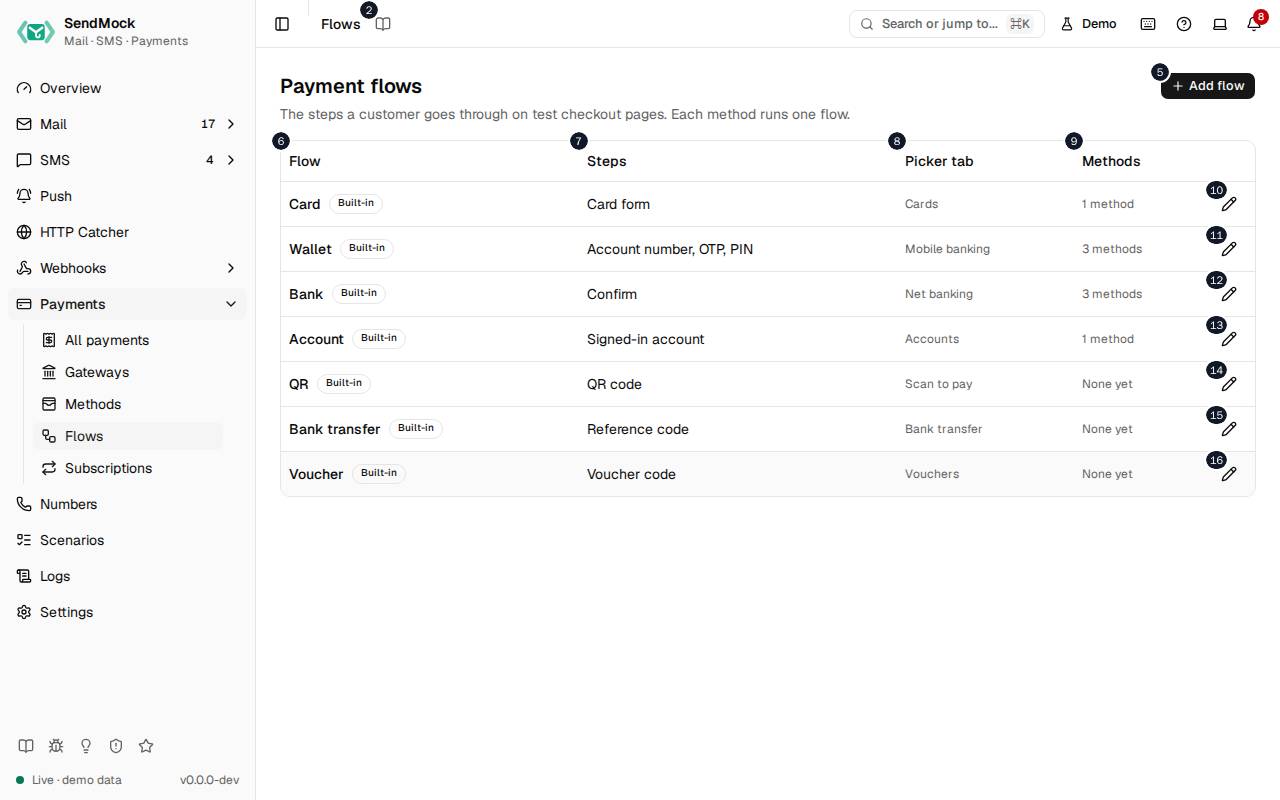
The numbers match the entries below. The picture shows the first screenful; controls further down, and texts, have no marker.
On the screen
1. Flows
Heading.
- What it does: Names the open screen in the header.
2. Read the Flows guide
Link.
- What it does: Opens this screen's page in the user guide, in a new tab.
- Links to: Flows.
3. Payment flows
Heading.
- What it does: The steps checkout pages run.
- Same action elsewhere: REST
GET /api/v1/payments/flows, CLIsendmock payments flows list, MCPsendmock_payment_flow_list
4. The steps a customer goes through on test checkout pages. Each method runs one flow.
Text.
- What it does: Explains the screen.
5. Add flow
Button.
- What it does: Opens Add a payment flow; in it, adds the flow.
- Same action elsewhere: REST
POST /api/v1/payments/flows, CLIsendmock payments flows create, MCPsendmock_payment_flow_create
6. Flow
Column.
- What it does: The flow's name.
7. Steps
Column.
- What it does: Its steps, in order.
8. Picker tab
Column.
- What it does: The tab its methods show under on checkout pages.
9. Methods
Column.
- What it does: The methods that run it.
10. Edit Card
Button.
- What it does: Opens the Card flow's editor.
- Same action elsewhere: REST
GET /api/v1/payments/flows/{flowKey}, CLIsendmock payments flows show, MCPsendmock_payment_flow_get
11. Edit Wallet
Button.
- What it does: Opens the Wallet flow's editor.
- Same action elsewhere: REST
GET /api/v1/payments/flows/{flowKey}, CLIsendmock payments flows show, MCPsendmock_payment_flow_get
12. Edit Bank
Button.
- What it does: Opens the Bank flow's editor.
- Same action elsewhere: REST
GET /api/v1/payments/flows/{flowKey}, CLIsendmock payments flows show, MCPsendmock_payment_flow_get
13. Edit Account
Button.
- What it does: Opens the Account flow's editor.
- Same action elsewhere: REST
GET /api/v1/payments/flows/{flowKey}, CLIsendmock payments flows show, MCPsendmock_payment_flow_get
14. Edit QR
Button.
- What it does: Opens the QR flow's editor.
- Same action elsewhere: REST
GET /api/v1/payments/flows/{flowKey}, CLIsendmock payments flows show, MCPsendmock_payment_flow_get
15. Edit Bank transfer
Button.
- What it does: Opens the Bank transfer flow's editor.
- Same action elsewhere: REST
GET /api/v1/payments/flows/{flowKey}, CLIsendmock payments flows show, MCPsendmock_payment_flow_get
16. Edit Voucher
Button.
- What it does: Opens the Voucher flow's editor.
- Same action elsewhere: REST
GET /api/v1/payments/flows/{flowKey}, CLIsendmock payments flows show, MCPsendmock_payment_flow_get
Add a payment flow dialog
17. Add a payment flow
Heading.
- What it does: The Add a payment flow dialog.
18. Name it and pick where to start; you compose its steps next.
Text.
- What it does: Explains adding a flow.
- Links to: Advanced: create a payment flow.
19. Name
Field.
- What it does: The name.
20. Key
Field.
- What it does: The key, fixed once added.
21. Used by the API; fixed once added.
Text.
- What it does: Explains the key.
22. Picker tab
Field.
- What it does: The tab its methods show under on checkout pages.
23. Its methods show under this tab on checkout pages, e.g. Mobile banking.
Text.
- What it does: Explains the picker tab.
24. Start from
Drop-down.
- What it does: Blank, or a flow to copy.
25. Cancel
Button.
- What it does: Closes the dialog or editor without saving.
26. Add flow
Button.
- What it does: Adds the flow and opens its editor.
- Same action elsewhere: REST
POST /api/v1/payments/flows, CLIsendmock payments flows create, MCPsendmock_payment_flow_create
27. Close
Button.
- What it does: Closes the dialog or editor without saving.
Flow editor
28. Card
Heading.
- What it does: The method or flow open in the editor (here Card).
29. Flow, key card . Used by Card.
Text.
- What it does: The flow's key and the methods that use it.
30. Name
Field.
- What it does: The name.
31. Picker tab
Field.
- What it does: The tab its methods show under on checkout pages.
32. Its methods show under this tab on checkout pages.
Text.
- What it does: Explains the picker tab.
33. Variable
Column.
- What it does: A value the steps' texts can use.
34. Becomes
Column.
- What it does: What it reads from the payment.
35. Example
Column.
- What it does: An example of its value.
- Same action elsewhere: REST
GET /api/v1/payments/flow-variables, CLIsendmock payments flows variables, MCPsendmock_payment_flow_variable_list
36. Steps
Heading.
- What it does: The flow's steps.
37. The checkout page runs them in this order.
Text.
- What it does: Explains the step order.
38. Add step
Button.
- What it does: Adds a step: a form, a code, a confirmation, a QR code, and so on.
- Same action elsewhere: REST
POST /api/v1/payments/flows/{flowKey}/steps, CLIsendmock payments flows steps add, MCPsendmock_payment_flow_step_add
39. Move Step #: Card form up
Button.
- What it does: Runs the step earlier.
40. Move Step #: Card form down
Button.
- What it does: Runs the step later.
41. Remove Step #: Card form
Button.
- What it does: Removes the step.
- Same action elsewhere: REST
DELETE /api/v1/payments/flows/{flowKey}/steps/{stepIndex}, CLIsendmock payments flows steps remove, MCPsendmock_payment_flow_step_remove
42. Title
Field.
- What it does: The step's title on the checkout page.
43. Insert variable into Step #: Card form title
Button.
- What it does: Inserts a flow variable, such as the amount, into the title.
44. Field label
Field.
- What it does: The label of its field.
45. Insert variable into Step #: Card form field label
Button.
- What it does: Inserts a flow variable, such as the amount, into the field label.
46. Hint
Field.
- What it does: A hint under the field.
47. Insert variable into Step #: Card form hint
Button.
- What it does: Inserts a flow variable, such as the amount, into the hint.
48. Button text
Field.
- What it does: Its button's text.
49. Insert variable into Step #: Card form button text
Button.
- What it does: Inserts a flow variable, such as the amount, into the button text.
50. Preview: Card number · [Pay BDT #,#.#]
Text.
- What it does: How the step looks on a checkout page.
51. Reset to default
Button.
- What it does: Brings back the shipped definition, after you confirm.
52. Cancel
Button.
- What it does: Closes the dialog or editor without saving.
53. Save flow
Button.
- What it does: Saves the flow; methods using it change at once.
- Same action elsewhere: REST
PATCH /api/v1/payments/flows/{flowKey}, CLIsendmock payments flows update, MCPsendmock_payment_flow_update
54. Close
Button.
- What it does: Closes the dialog or editor without saving.
When the data cannot load
55. Could not load the payment flows. Try again
Message.
- What it does: Shown when the flows could not be loaded.
- Errors: Check SendMock is running, then press Try again.
56. Could not load the payment flows.
Text.
- What it does: The message inside the alert.
57. Try again
Button.
- What it does: Loads them again.
- Same action elsewhere: REST
GET /api/v1/payments/flows, CLIsendmock payments flows list, MCPsendmock_payment_flow_list